
The {CODICTS} Better Time Picker for Elementor Forms plugin replaces the default time picker in Elementor Pro forms with a modern, Material Design–style analog clock picker. The replacement is fully automatic — install the plugin, activate it, and every Elementor time field on your site receives the upgraded picker. No settings page, no configuration. Users select hours and minutes from a circular clock face with AM/PM toggle, Ok/Cancel buttons, and a clean dark theme.
Requirements
| Requirement | Details |
|---|---|
| Elementor Pro | Must be installed and active with the Form widget |
No child theme required. No settings page. This plugin does not override any template files and has zero configuration. It works immediately upon activation by automatically detecting Elementor time fields and replacing them with the upgraded clock picker.
Installation & Activation
Start by downloading the plugin from the Downloads page on your dashboard on the CoDicts website.
After downloading, install and activate the plugin in WordPress by navigating to “Plugins” > “Add New” > “Upload Plugin” and selecting the downloaded zip file. Click “Install Now” and then “Activate”.
That’s it — visit any page with an Elementor form containing a Time field to see the new clock picker.
Key Features
| Feature | Description |
|---|---|
| Automatic Replacement | Detects Elementor time fields and replaces them with the Material Design clock picker — no configuration needed. |
| Analog Clock UI | Circular clock face for selecting hours and minutes. Users first pick the hour, then the clock switches to minute selection. |
| AM/PM Toggle | Click the AM/PM badges on the clock face or the period label in the header to switch. |
| Dark Theme | Ships with an elegant dark theme by default. Additional built-in themes available via customization. |
| Dynamic Content Support | Automatically catches time fields rendered after page load — works inside Elementor popups, AJAX-loaded content, and multi-step forms. |
| Ok / Cancel Buttons | Confirm or discard the time selection with clear action buttons. |
| Keyboard Support | Press Enter to open the picker, Escape to close it. |
| Zero Configuration | No admin settings page. Works immediately upon activation. |
How It Works
The plugin automatically detects all Elementor time fields on the page and replaces the default Flatpickr-based time picker with the Material Design clock picker.
1. When a page loads, the plugin scans for Elementor time fields.
2. Each detected time field is replaced with a new input connected to the analog clock picker. The field’s name and ID are preserved so form submissions continue to work seamlessly.
3. The plugin continuously monitors the page for new time fields (e.g., inside popups or AJAX-loaded content) and replaces them automatically.
The Clock Picker Interface
When a user clicks on a time field, the clock picker opens:
| Element | Description |
|---|---|
| Time display header | Shows the currently selected time and AM/PM indicator at the top. |
| Clock face | Circular analog clock with hour or minute digits arranged around the edge. Click any digit to select it. |
| AM/PM badges | Toggle between AM and PM by clicking the badges on the clock face. |
| Two-step selection | First select the hour — the clock automatically switches to minute selection. |
| Action buttons | “Ok” to confirm the selection, “Cancel” to discard. |
The selected time is written back to the form field in hh:mm format (e.g., 02:30).
Using Inside Elementor Popups
When using the time picker inside an Elementor Popup, you must enable the following setting to prevent the popup from closing when the user interacts with the clock:
Popup Settings → Advanced → Prevent Closing on Overlay → Yes
Why: The clock picker renders its own overlay on top of the Elementor popup overlay. Without this setting, clicking the clock’s background may inadvertently close the popup.
Customization
The plugin works with zero configuration out of the box. For advanced users who want to customize the behavior, the following options are available by editing the plugin’s JavaScript file (assets/js/scripts.js).
Changing the Theme
The plugin ships with the dark theme by default. Seven built-in themes are available:
| Theme | Accent Color |
|---|---|
| dark (default) | Dark background with blue accent buttons |
| blue | Blue header and accent |
| red | Red header and accent |
| green | Green header and accent |
| teal | Teal header and accent |
| purple | Purple header and accent |
| indigo | Indigo header and accent |
To change the theme, open assets/js/scripts.js and modify the theme value:

Changing the Time Format
To change how the selected time is displayed in the field, modify the format value:
| Format String | Output Example | Description |
|---|---|---|
'hh:mm' | 02:30 | 12-hour, zero-padded (default) |
'h:mm tt' | 2:30 PM | 12-hour with AM/PM label |
'h:mm t' | 2:30 pm | 12-hour with lowercase am/pm |
'hh:mm:ss' | 02:30:00 | With seconds |
Enabling 24-Hour Mode
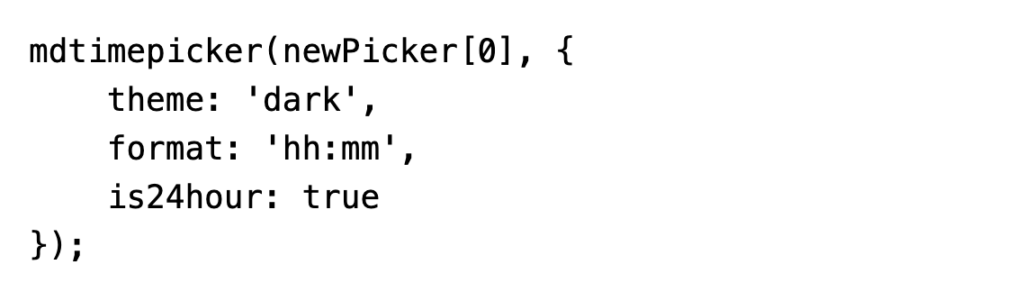
To use a 24-hour clock instead of AM/PM, add is24hour: true:
Adding Custom CSS
To add custom style overrides, edit assets/css/styles.css. This file is loaded after the library CSS and is currently empty, reserved for your customizations. Any rules you add here will take precedence over the default styles.
Note: Plugin updates will overwrite your changes to these files. Back up your customizations before updating and re-apply them after.
Example — Basic Elementor Form with Time Field
1. Activate the plugin.
2. In Elementor, add a Form widget to your page.
3. Add a Time field to the form.
4. Save and preview the page. When a user clicks the time field, the Material Design analog clock picker opens instead of the default Elementor time picker. They select the hour, then the minute, toggle AM/PM, and click Ok.
Example — Time Field Inside an Elementor Popup
1. Create an Elementor Popup with a Form widget containing a Time field.
2. In the popup settings, go to Advanced → Prevent Closing on Overlay → Yes.
3. Publish the popup. When users trigger the popup and click the time field, the clock picker opens on top of the popup. The popup stays open while the user interacts with the clock.
Frequently Asked Questions
Does this require any configuration?
No. The plugin works immediately upon activation with zero configuration. There is no settings page. All Elementor time fields are automatically upgraded.
Does this require a child theme?
No. The plugin does not override any template files.
Does this require Elementor Pro?
Yes. The plugin targets Elementor Pro’s Form widget time fields. Without Elementor Pro and a form containing a time field, the plugin has no effect.
Does it work inside Elementor Popups?
Yes. The plugin automatically detects time fields rendered inside popups and AJAX-loaded content. However, you must enable Popup Settings → Advanced → Prevent Closing on Overlay → Yes to prevent the popup from closing when interacting with the clock picker.
Does it work with multi-step forms?
Yes. The plugin continuously monitors the page for new time fields, so fields revealed in later steps of a multi-step form are automatically detected and upgraded.
Can I use this with non-Elementor forms?
Not out of the box. The plugin specifically targets Elementor’s time field HTML structure. To use it with other forms, you would need to modify the plugin’s JavaScript to target different selectors.
Can I change the theme or time format?
Yes. Edit assets/js/scripts.js to change the theme (7 built-in themes available) or format (12-hour, 24-hour, with/without AM/PM label). See the Customization section for details.
Why does the original picker briefly flash before being replaced?
The plugin checks for new time fields every 300 milliseconds. In rare cases, the original Elementor picker may briefly appear before the replacement kicks in. This flash is typically imperceptible and the replacement happens within 300ms.
Will form submission still work after the replacement?
Yes. The replacement input preserves the original field’s name and ID attributes, so Elementor’s form submission logic continues to work seamlessly.
Is there a settings page?
No. The plugin is designed as a zero-configuration solution. All customization is done by editing the JS and CSS files directly.
Does the plugin create any database tables?
No. The plugin stores no data in the database. It only loads JavaScript and CSS files on the frontend to replace the time picker.
What happens when the plugin is deactivated?
Elementor’s original Flatpickr time picker is restored automatically. No data or settings need to be cleaned up since the plugin stores nothing.
Troubleshooting
Clock Picker Not Appearing
| Cause | Solution |
|---|---|
| Elementor Pro not active | The plugin requires Elementor Pro with the Form widget. Verify Elementor Pro is installed and active. |
| No Time field in the form | The plugin only targets Time fields, not Date fields. Ensure your Elementor form has a Time field type. |
| Plugin not activated | Go to Plugins → Installed Plugins and verify the plugin is active. |
| JavaScript error | Check the browser console (F12 → Console) for errors. Other plugins or themes may conflict with jQuery or the clock picker library. |
Popup Closes When Clicking the Clock Picker
| Cause | Solution |
|---|---|
| Popup overlay setting | In the Elementor Popup settings, go to Advanced → Prevent Closing on Overlay → Yes. The clock picker renders its own overlay, and the popup may interpret clicks on it as “outside” clicks. |
Selected Time Not Submitted with the Form
| Cause | Solution |
|---|---|
| Missing field attributes | The replacement only occurs if the original Elementor time input has an id attribute. Verify the Elementor form field is properly configured. |
| Script conflict | Another plugin or script may be interfering with the form inputs after the replacement. Check the browser console for errors and try disabling other plugins to isolate the conflict. |
Original Picker Briefly Flashes Before Replacement
| Cause | Solution |
|---|---|
| Normal behavior | The plugin checks for time fields every 300 milliseconds. The brief flash is typically imperceptible. If it is noticeable, it is because Elementor’s script initializes before the plugin’s first check. This does not affect functionality. |
For further support, visit codicts.com or contact us at support@codicts.com.